

Descriptive Link Titles
One area of website accessibility that is often overlooked is the need for descriptive link titles. These are crucial to allow screen reading software to accurately indicate the link’s action to those with disabilities. Clear, specific links reduce confusion and support users with memory or learning disabilities. When link titles become specific rather than generic, it’s easier for everyone to find their way around a web page.
A link is any piece of text or element (like a button or image) that, when clicked, takes the user to another page, document, section, or opens an email or external site.

Keep in mind:
- Screen readers often present a list of all links on a page.
- Vague titles like “click here” or “read more” offer no context unless read in the full sentence.
- Some screen readers also can’t detect a text link that is hidden within a sentence or paragraph.

Make sure:
- Link text is descriptive and accurately conveys the destination or action.
- Avoid generic terms like “click here,” “read more,” “this,” or “link.”
- Each link on a page must be uniquely titled if it leads to a different destination.
- Links must make sense when read out of context, such as in a list of links.
- Your most important links should be separated from other text content.
How To Improve Link Titles
In the WordPress Block Editor, Gutenberg, you can make links more descriptive either by improving the visible link text or optionally adding a title attribute. The visible text is most important.
Improving Link Text with the WordPress Block Editor
- Edit the post or page in your WordPress dashboard.
- Highlight the text you want to turn into a link.
- Example:
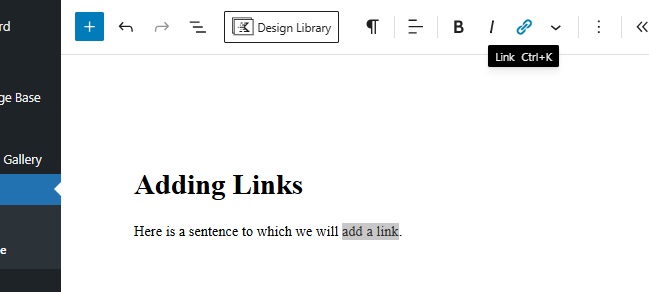
- Example:
- Click the link icon in the formatting toolbar.
- Paste or type the URL.
- Make sure the link text describes the destination
- Example: “2025 Annual Report” instead of “Click here”
- Example: “2025 Annual Report” instead of “Click here”
Adding Buttons with the WordPress Block Editor
- Edit the post or page in your WordPress dashboard.
- Select the blue plus icon at the right of the block field whose default text reads Type / to choose a block. Type the word “button” in the search field and select the button icon that appears.
- Example:
- Example:
- The button will appear where your cursor had been, with default text that reads Add text…
- Example:
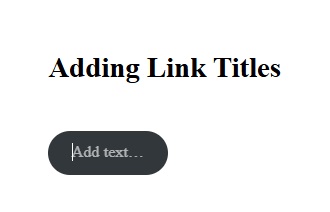
- Example:
- Enter your link title within the button, making sure the link text describes the destination (e.g., “2025 Annual Budget” instead of “Click here”).
- Select the link icon in the menu bar of the WordPress editor dashboard. A field will appear beneath the button to enter the URL link destination.
- Example:
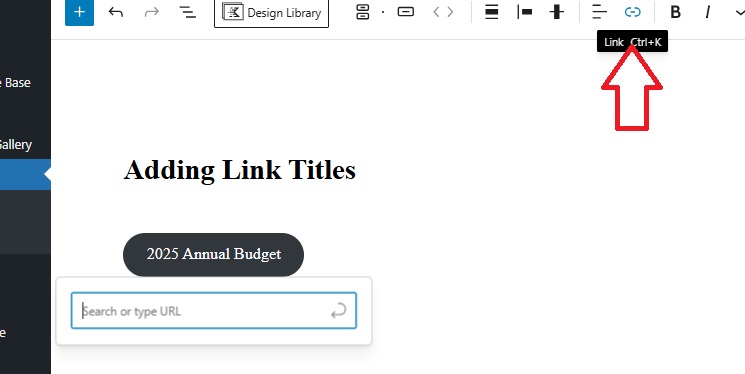
- Example:
- When you have entered the link URL, select the small curved arrow icon in the title field to save.
Improving Existing Link Titles
Example One
Rather than a generic “Click here” title, your link should say exactly what will happen when clicked. In this case, it takes the visitor to an Accessibility Guide.
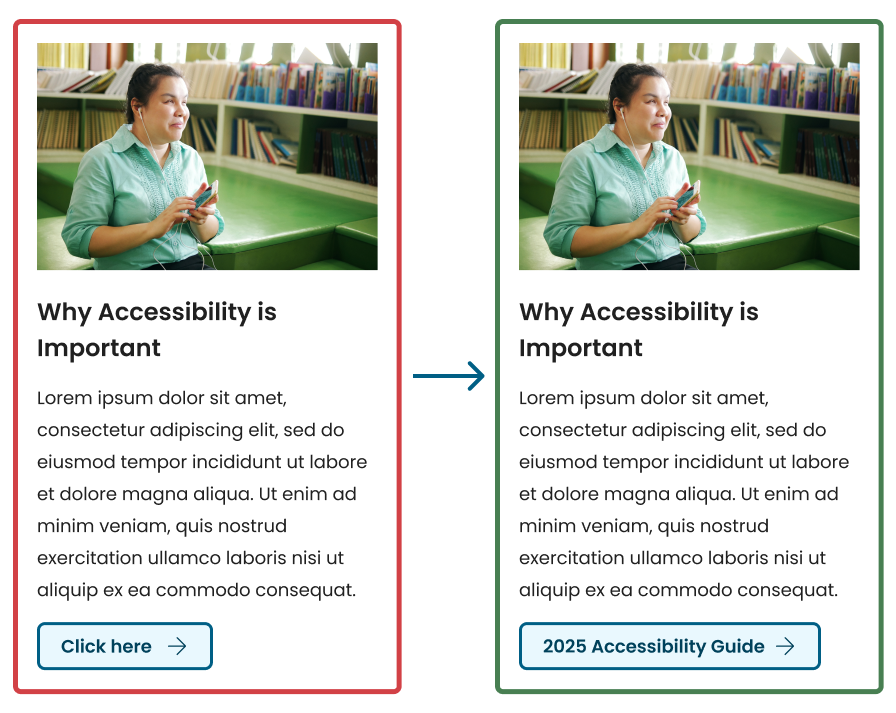
Example Two
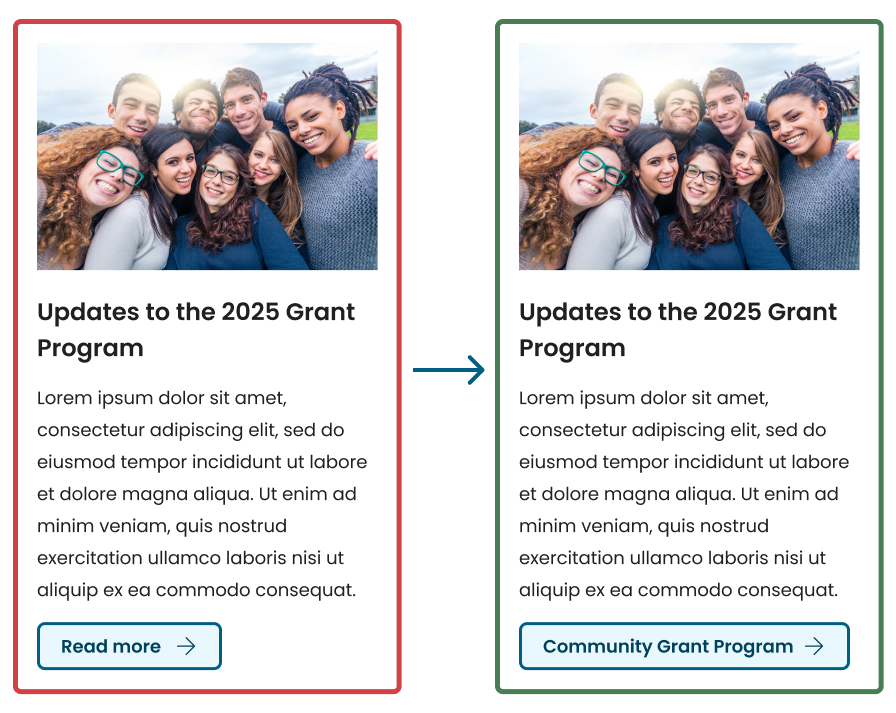
A generic “Read more” is another throwaway link title. Read more about what, specifically? In this case, a Community Grant Program.
Example Three
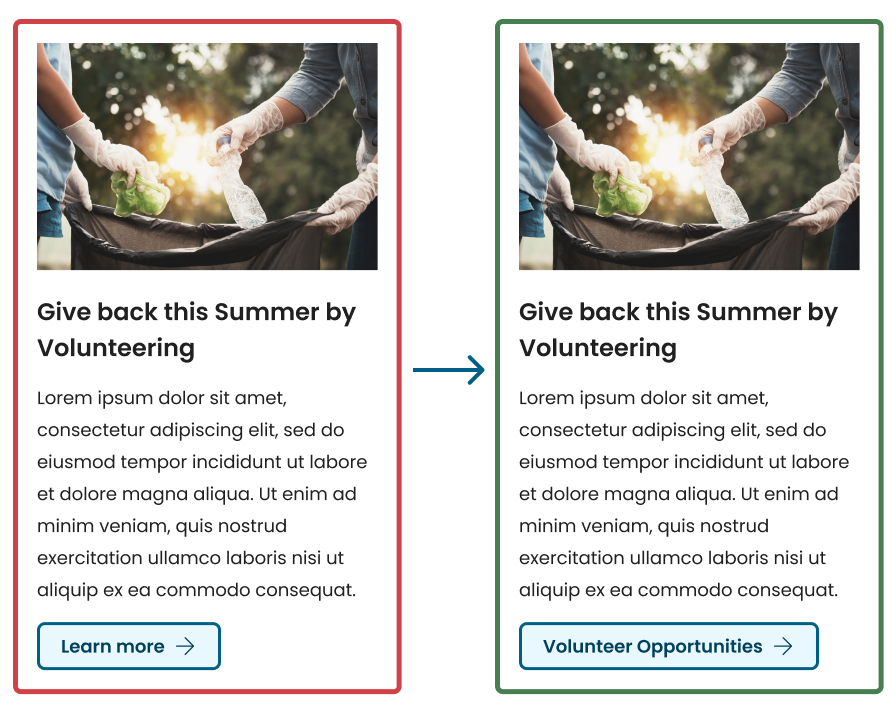
“Learn more” is another commonly used link title. Again, ask yourself the question- Learn more what? Adding specifics helps clarify what to expect.
Improving Document Link Titles
PDF Example
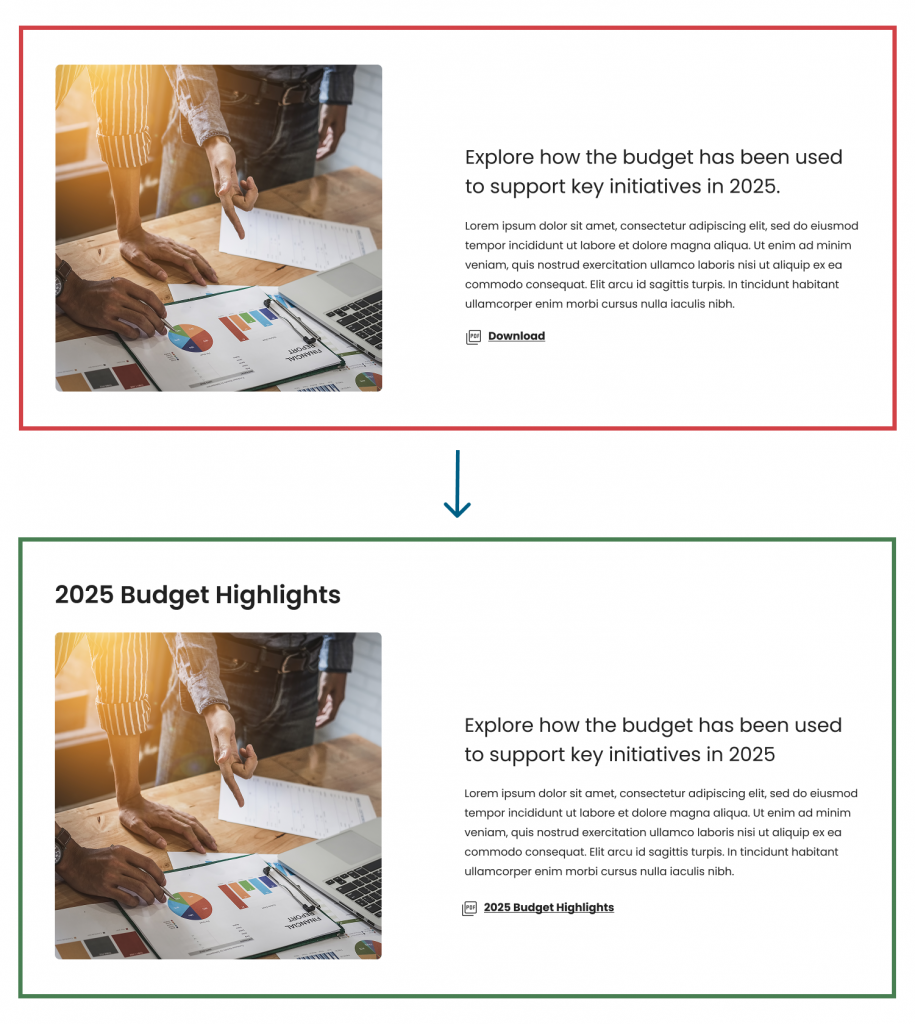
Although a link title should explain what will happen – it is an outdated concept to automatically title a PDF link as a “Download”. Most web browsers will now open PDF attachments in a separate window to view, with the option to download from that screen. As in this example, the PDF file is indicated automatically in WordPress by the icon, and the link title should explain the contents of the PDF.
In a situation where a PDF or other file is intended to be directly downloaded, the link title should include that action and would read “Download 2025 Budget Highlights” in this example.
Summary Tips
- Use link text that clearly explains where the user will go and what the user will get.
- DO NOT use vague phrases like “click here” or “read more”.
- Avoid repeating identical link text that leads to different destinations.
- Links should be distinguishable visually (typically underlined, styled, or in button format). Links should not only be indicated by a different color.