Okta WordPress Login Guide
Please use this page as a guide to access the WordPress admin dashboard using OKTA Single Sign On (SSO)
For State Employees and Delaware.gov Email Addresses
Please follow the below steps if you are a state employee and/or and use a state delaware.gov email address to access the WordPress admin dashboard with a delaware.gov email address.
- Login on id.delaware.gov in your browser
- Enter your delware.gov login credentials when prompted at the login screen.
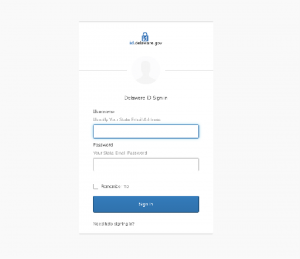
- Enter your delware.gov login credentials when prompted at the login screen.
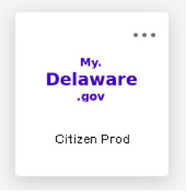
- Click on My.Delaware.gov application
- Once you login – You should see the applications you have access to in the APPS section.
- Here you should see the “My.Delaware.gov” application.
- Click that app which will login to OKTA SSO my.delaware.gov
- Access the WordPress admin dashboard
- Type the WordPress URL on the same browser.
- Add /wp-admin to the end of the URL to access the WordPress admin dashboard.
- For example: yoursitename.delaware.gov/wp-admin
For Non-State Employees or Citizen Accounts
Please follow the below steps if you are using a non-state email address to access the WordPress admin dashboard.
Please Note: If you are not a State employee or using a non State email address, then you will be getting an email from OKTA. Please follow the email instructions to activate and setup your account.
- Open the WordPress admin URL that you have access to
- Type the WordPress URL in your browser.
- Add /wp-admin to the end of the URL to access the WordPress admin dashboard.
- For example: yoursite.delaware.gov/wp-admin
- You will be redirected to the OKTA Single Sign On (SSO)
- You will see the https://my.delaware.gov login page
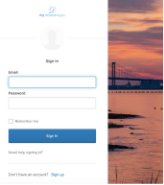
- You will see the https://my.delaware.gov login page
- Login
- Enter the credentials you have setup or activated for your account.
- Access to WordPress Admin dashboard
- After login, you should be redirected to your WordPress Admin dashboard.
- If you experience any issues, please reach out to GIC using the following OKTA Issue Report Form
Troubleshooting FAQs
403 App Not assigned
If you see a 403 App Not Assigned error, please clear your browser cache and cookies. Once your browser cache and cookies are clear, close and reopen your browser, then try to login again accessing the admin dashboard.
How do you clear your browser cache and cookies? View this how-to link, https://its.uiowa.edu/services/how-clear-cache-and-cookies-your-web-browser or you can reach out to us for support.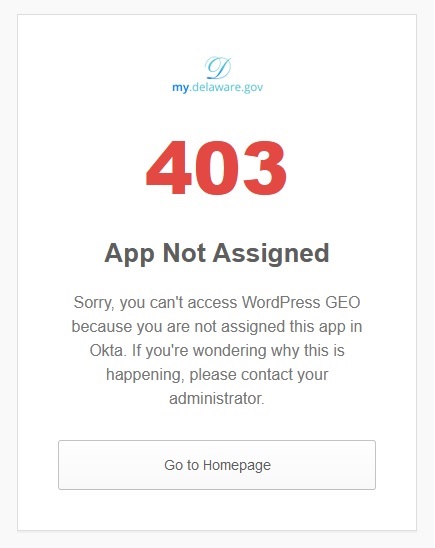
I logged in to my.delaware.gov, but I’m not seeing any apps
You will not see any apps once you login to my.delaware.gov when accessing the WordPress admin dashboard. You just have to open a new tab on the same browser and access the URL, yoursite.delaware.gov/wp-admin for example, to access admin dashboard.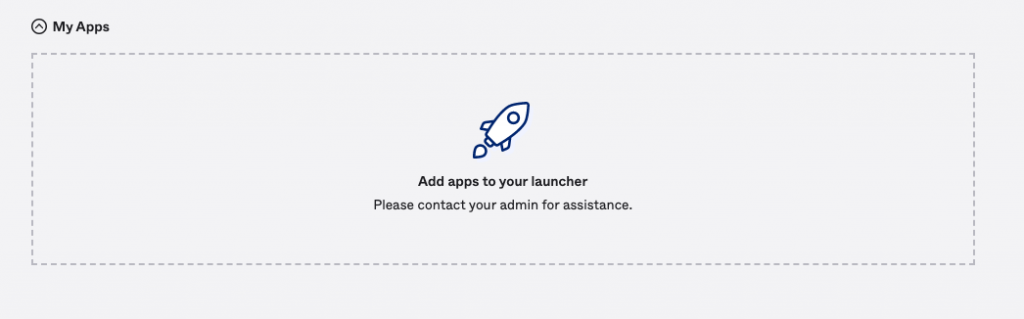
Access Policy Error
This is an intermittent error that may occur. Refreshing the page again should take you back to the admin dashboard screen.
Request Rejected Error
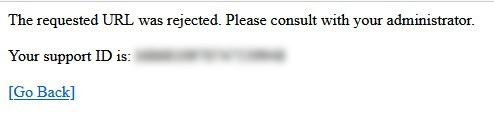
If you receive a Requested URL Rejected error, similar to the image below, please reach out to GIC for support. Include your support ID within your request. GIC will work with DTI to get the exception added using the support ID provided.