

Adding Alt Text in WordPress
Accessibility compliance requires that every image on a website has alternative text, or “alt text”, entered. This text allows screen reading software to describe the images to those who have visual challenges.
Alt Text How-To Example
Here’s how to add a new photo to a WordPress page and enter the alt text in block editor mode.
Let’s use this photograph taken over Rehoboth Beach as an example:

Step 1: Open WordPress Page
Log in to your WordPress account. Open the page to which you want to add the beach photo.

Step 2: Add Image Block
Select either the blue plus icon at the top left of the dashboard, or the Add Block plus icon on the right of a new line on the page.

If you’ve selected the Add Block plus icon on the right, you will see this menu appear:
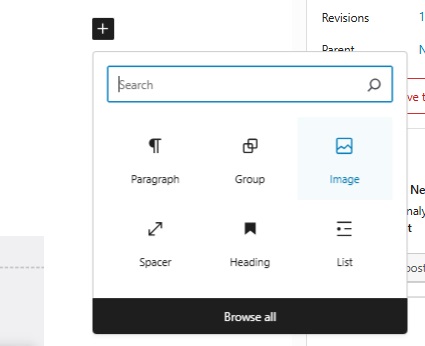
If you’ve selected the blue plus icon at the top, you will see the menu below:
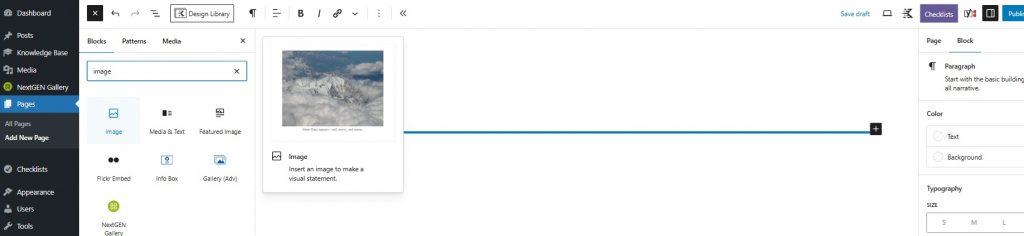
In either case, type “image” into the search field. Select Image from the icon menu.
Step 3: Open the Media Library
You will see the window below open. Select the Media Library option.
Step 4: Select or Upload Media
Next, select Upload Files and choose the photo you want to use from your own files or upload a new file.
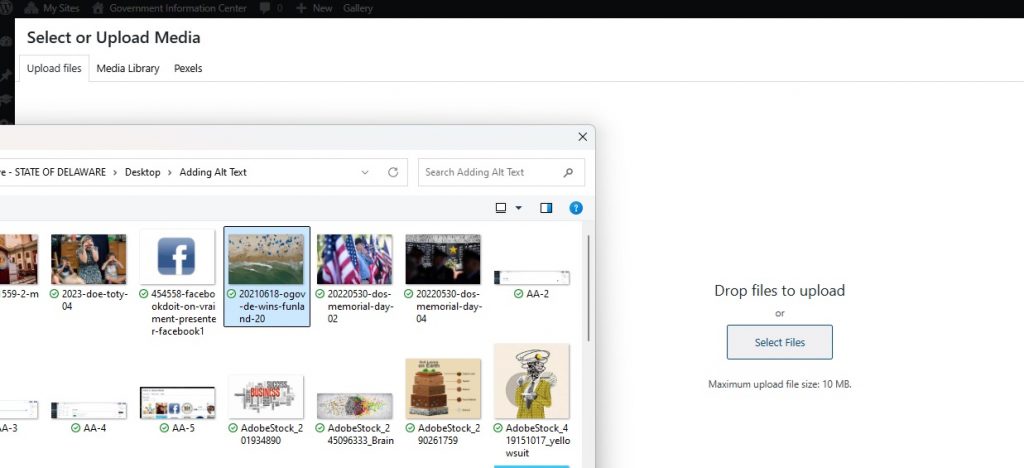
Step 5: Include Alt Text
When the image is uploaded, you will see the following window that includes a field on the right titled Alternative Text.
Enter your alt text here, and it saves automatically when you close the window.
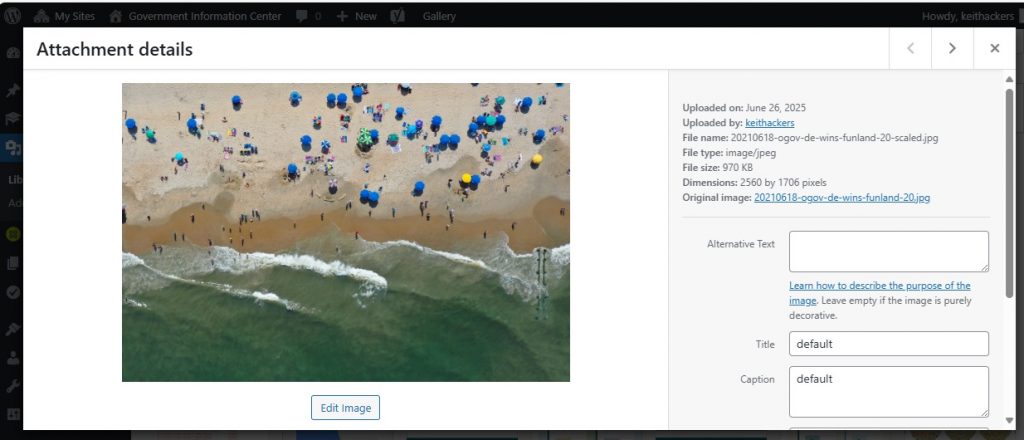
Step 6: Review Alt Text
The alt text we entered for this image reads: “Aerial view of a crowded beach with colorful umbrellas, people relaxing on sand and swimming in the ocean, waves crashing onto the shore, vibrant and lively.”
How Did We Come Up With That?
Good alt text captures the spirit of the image, rather than describing every single aspect. We chose words that explained the viewpoint angle, the colors and waves in a straightforward way, with a little poetic assessment at the end: vibrant and lively. That makes sense if an image is chosen to be representational or used as a stock selection rather than a specifically identifiable scene. For instance, the alt text above makes sense in a post about the first day of summer or a holiday weekend.
But what if the photo was instead being used in a story about an increase of harmful UV sun exposure? A more contextualized alt text for the same image might instead read:
“Aerial view of a crowded beach on a sunny day, with many people using umbrellas as their only sun protection.”
What if the photo was used alongside an announcement regarding a new restriction on the use of drones?
“Aerial view high above a crowded beach, taken by a photographer using a remote-controlled drone.”
The goal with alt text is to explain the image in the context of its select
How to Add Alt Text to an Image Already on a Page
- Open the published page
- Click the image(s) that need to be checked
- Over to the right under “Block” you will see a field that is labeled “Alternative Text”.
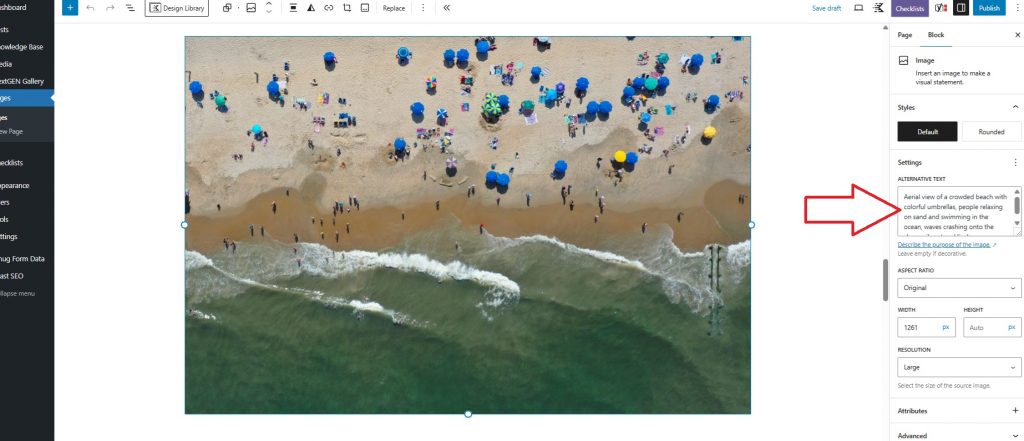
- Confirm if adequate alternative text is present. If not, add it.
- Click the blue “Save” button to update the published page.
Things to Remember
- Keep your alt text description as brief as possible; One or two sentences, no more than 125 characters total.
- Eliminate extraneous descriptive words such as “An image of…” or “A picture of…” unless the type of image is not a photograph, like a cartoon. (See examples below)
- Don’t copy and paste content that is also on the web page.
- Remember the context is what matters, rather than describing every detail.
If You’re Stuck
Consider plugging the image into any number of free online AI alt text generators to let them come up with a first draft:
- https://popupsmart.com/tools/ai-alt-text-generator
- https://teachonline.asu.edu/image-accessibility-generator
- https://theblue.social/generate-image-alt-text
But remember, an AI engine doesn’t know the context of the image, so make sure you review and edit your results. Make sure the tone of the alt text matches the context of its surroundings.
Alt Text for Different Types of Imagery
Photographs
When using photographs, think about the specific details shown—such as names, proper nouns, locations, or actions. Reflect on why you selected that image and what message or feeling you want it to communicate to your audience.
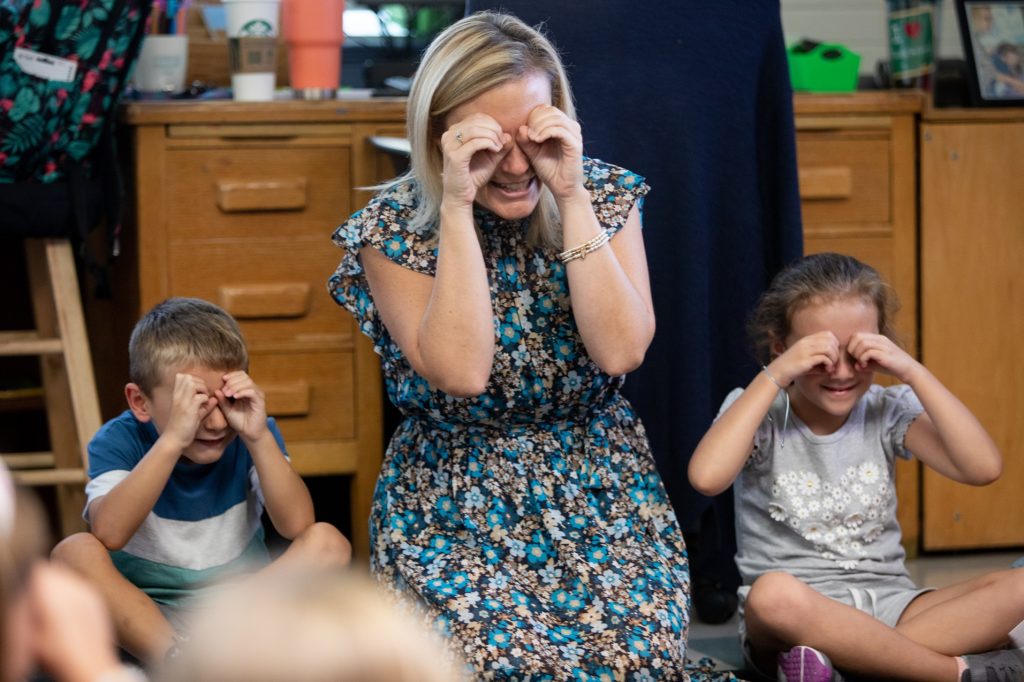
ALT TEXT: A teacher and two young children sit on the floor, making playful expressions by holding their hands to their eyes, mimicking binoculars. They are in a classroom setting.

ALT TEXT: A memorial wall honoring the men and women of Delaware who served in World War II and the Korean War, featuring a prominent gold star and flower arrangements in front. Silhouettes of attendees are blurred in the foreground.

ALT TEXT: The podium in Legislative Hall in Dover, with the official state seal on the front. The room is lit but empty.
Icons
For icons consider the purpose of the icon — whether it is to share a logo, to indicate an available action, or to serve as a link to a new page. Any type of non-photograph image should be identified as such. Any icon that links to another action or website should use its alt text in those cases to explain the action rather than describing the icon.
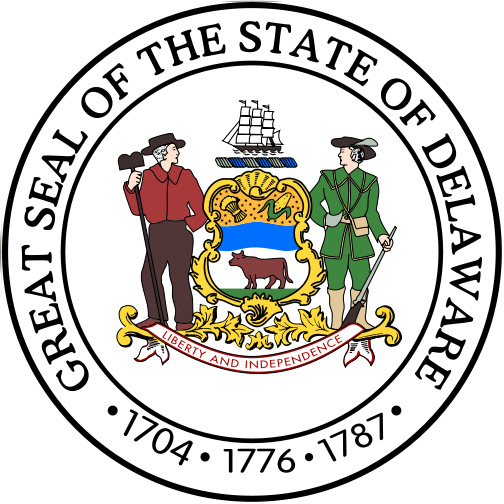
Alt Text: The image depicts the Great Seal of the State of Delaware, featuring two men, a ship, and a coat of arms with a cow, surrounded by the text “GREAT SEAL OF THE STATE OF DELAWARE” and the years “1704, 1776, 1787.”

Alt Text: Logo of the Delaware Government Information Center featuring the letters “GIC” with an upward arrow integrated into the design, enclosed in a circular blue background.

Alt Text: (without link) An icon representing a computer printer.
Alt Text: (when linked) Print this webpage. [NOTE: Logos or images that link to an action should be explained in the alt text, as opposed to describing the image itself.]

Alt Text: (without link) The Facebook logo, a white letter F over a blue background.
Alt Text: (when linked) Follow our agency on Facebook. [NOTE: Logos or images that link to another site should be explained in the alt text, as opposed to describing the image itself.]
Illustrations
For creative illustrations, the overall purpose or message of the image is more important than the individual details. If the image includes text—such as in a cartoon or an app screenshot—be sure to describe both the key visual elements and the relevant text.
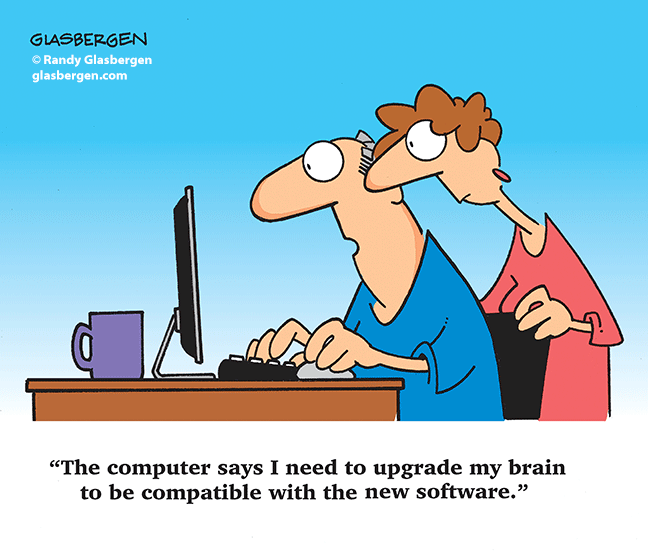
Alt Text: A cartoon of a man and woman looking at a computer screen. The man says “The computer says I need to upgrade my brain to be compatible with the new software.[NOTE: If the caption text is in the image itself, it must be included in the alt text.]

Alt Text: Artistic depiction of psychological manipulation, with hands controlling tangled strings in a human silhouette’s mind.
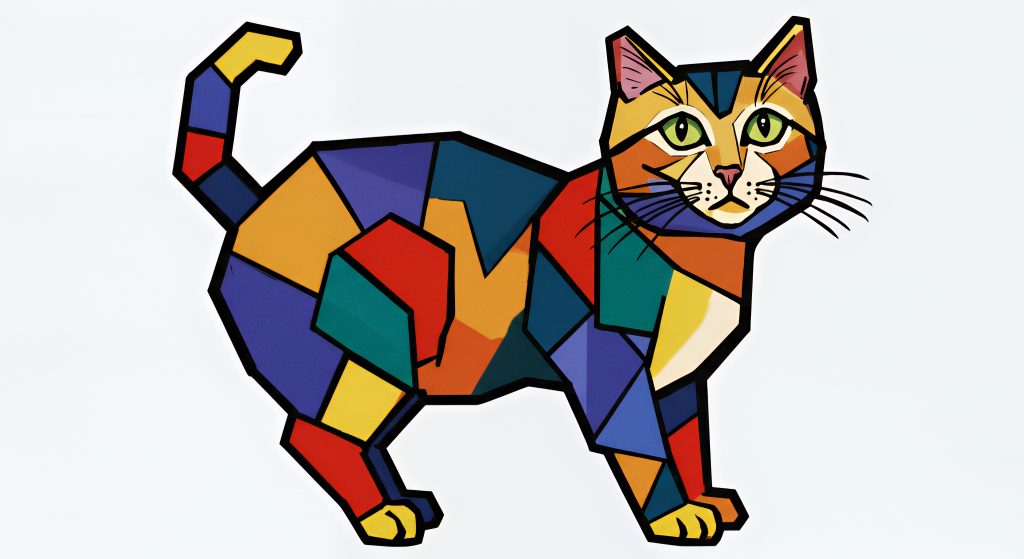
Alt Text: A painting of a cat with cubist style unrealistic angles and patches of dramatic color.
Diagrams
For diagrams and other visuals that present specific data, try to summarize the main message and key data points in one or two sentences. If the image is complex, consider adding supporting text nearby or providing a link to the full data for more context.

A word cloud illustration with the words Big Data prominent among others including Information, Management, and Search.
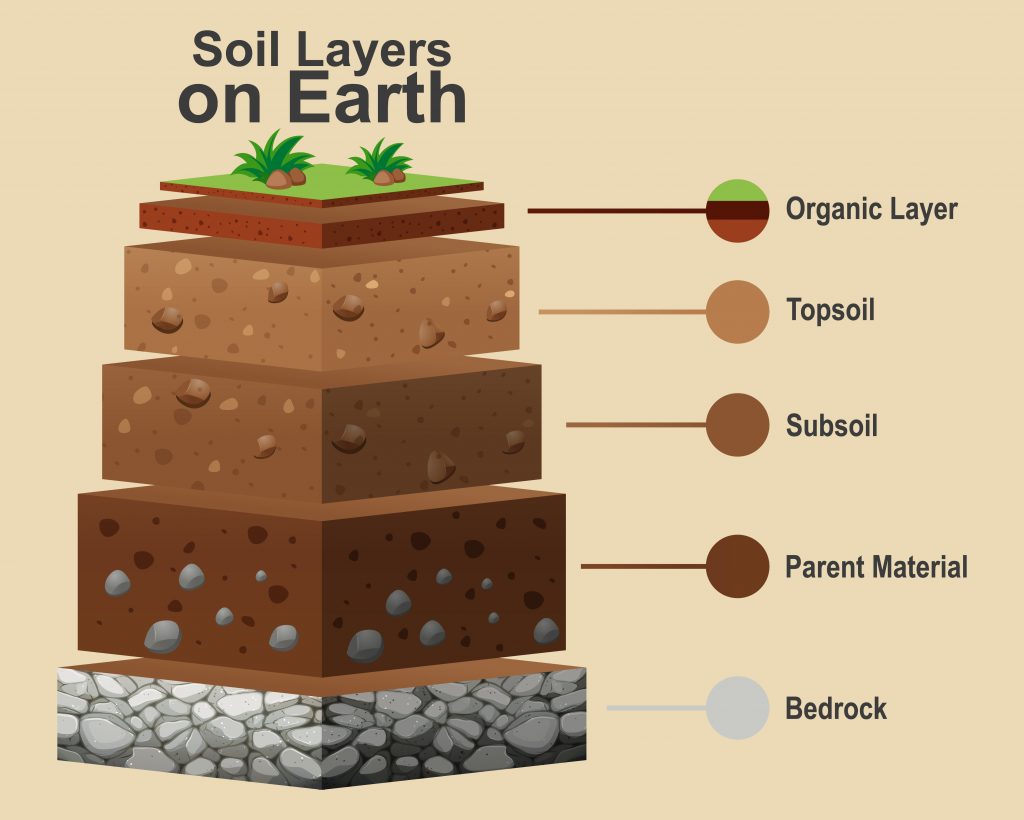
Alt Text:Diagram of Soil Layers on Earth, from top down: organic layer, topsoil layer, subsoil layer, parent rock layer, and last bedrock layer.
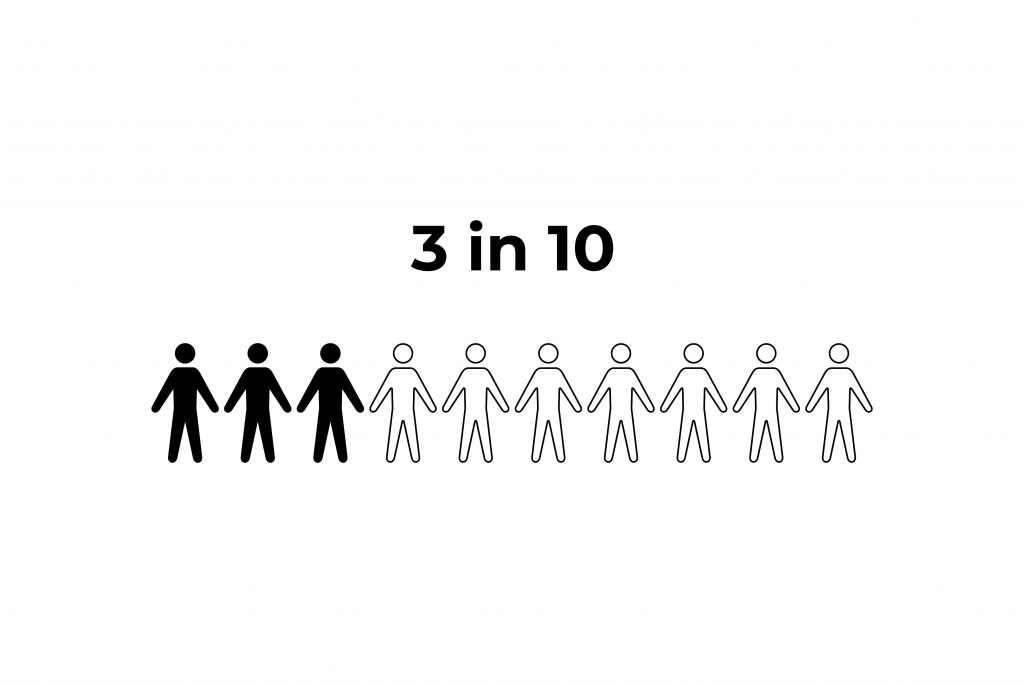
Alt Text:An infographic illustrating “3 in 10” with three figures in black and seven figures in white, representing a ratio.